Localization (Lokalise)
We localize your branded apps into the languages you need. All app texts are managed in Lokalise, a translation management platform, so translations stay consistent across the iOS, Android and web apps.
How localization works
- You choose the languages. Tell us which languages your apps need.
- We add them. The Cloudike team adds these languages to your apps in Lokalise.
- Translations. You can provide the translations yourself, or we translate the texts for you. Keep in mind that the apps contain a lot of texts.
- Review. During acceptance testing, you check the apps and point out the texts that need a different translation. We update them.
- Release. Changes appear in the mobile and web apps after a new app build is released.
Why Lokalise
- One place for all texts. Texts of the iOS, Android and web apps are managed together.
- Common texts are maintained once. Texts shared by all Cloudike apps live in the common project “Cloudike Shared 2.0”.
- Your own wording. Texts specific to your apps live in your company's project and take priority over the common ones.
Customize strings in Lokalise
By default, the Cloudike team makes all text changes for you. If you want to edit texts yourself, Lokalise access can be provided on request. With access, you can change the wording of any text for your apps only.
Sign in
Sign in at https://app.lokalise.com/login with a Lokalise account, or with your Google or GitHub account. You will see two projects: “Cloudike Shared 2.0” and your company's project.
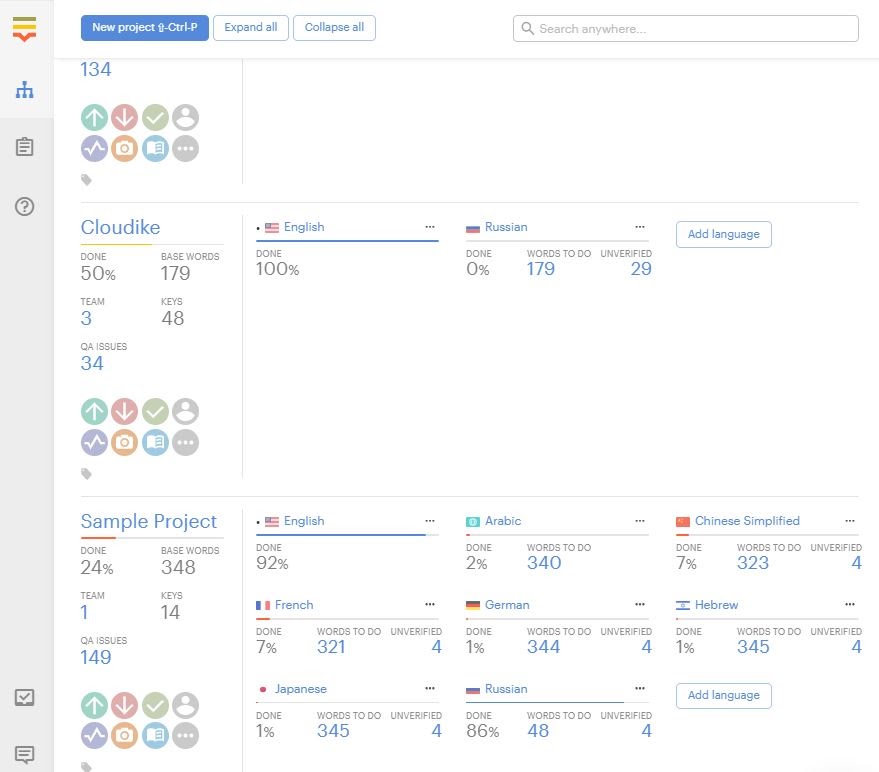
About the projects
- “Cloudike Shared 2.0” contains texts used by many Cloudike customers. Changes here affect all of them, so don't edit this project: coordinate any changes with the Cloudike team.
- Your company's project contains texts used only in your apps. If the same key exists in both projects, the text from your project is used.
Change a text for your apps
-
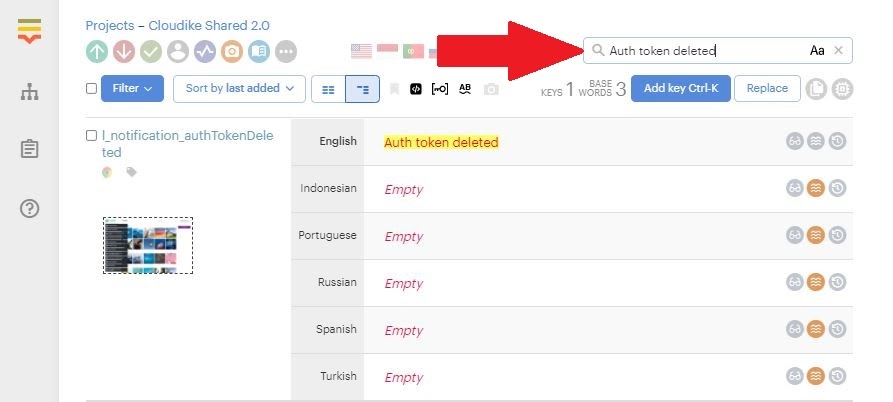
Open the “Cloudike Shared 2.0” project.
-
Use the search bar in the upper right corner to find the text you want to change.
-
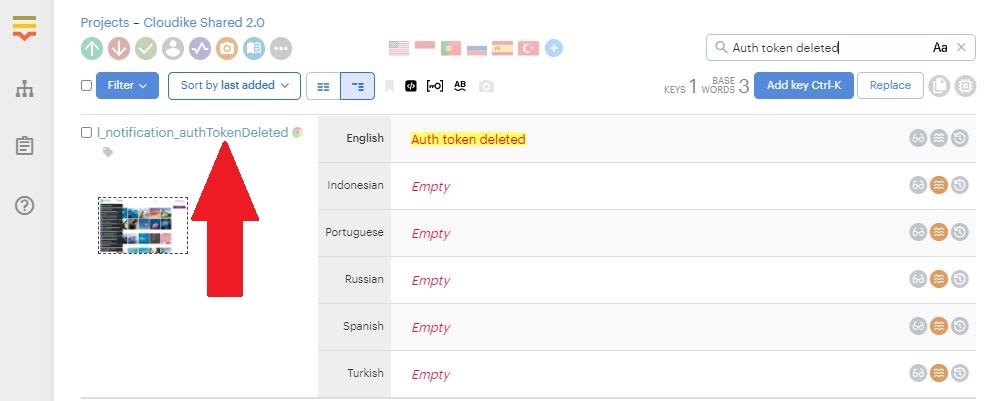
Copy the key of the text you found.
-
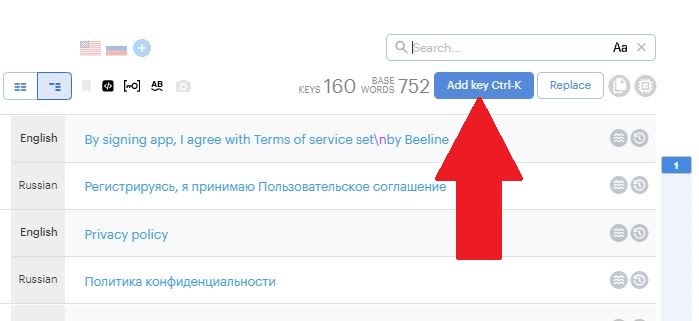
Open your company's project.
-
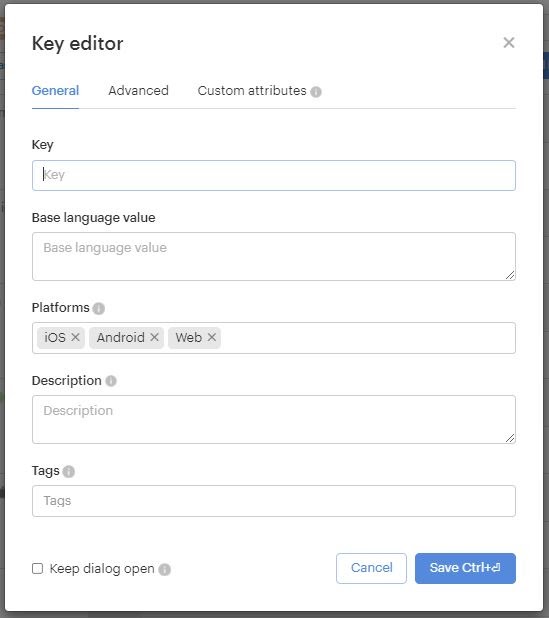
Click Add key (Ctrl+K) in the upper right corner.
-
In the form that appears, paste the key you copied.
-
Enter the Base language value and select a platform.
-
Click Save (Ctrl+Enter).
Lokalise can suggest machine translations from Google Translate or Microsoft Translator; review them manually before saving.
The changes appear in the mobile and web apps after a new app build is released.